Getting started and signing in
Signing in, second-step verification, roles, and staff onboarding
Getting started and signing in
Signing in
You sign in to the platform with your own username and password. Each person has their own sign-in; you do not share an account with a colleague.
You sign in to one franchise account at a time. If the same organisation runs more than one franchise account, for example in two countries, those are separate accounts and you sign in to each one separately. There is no account switcher and no single sign-on across accounts.
Another franchise's customers, devices, tickets and reports are not visible to you, and the platform refuses them rather than hiding them on screen.
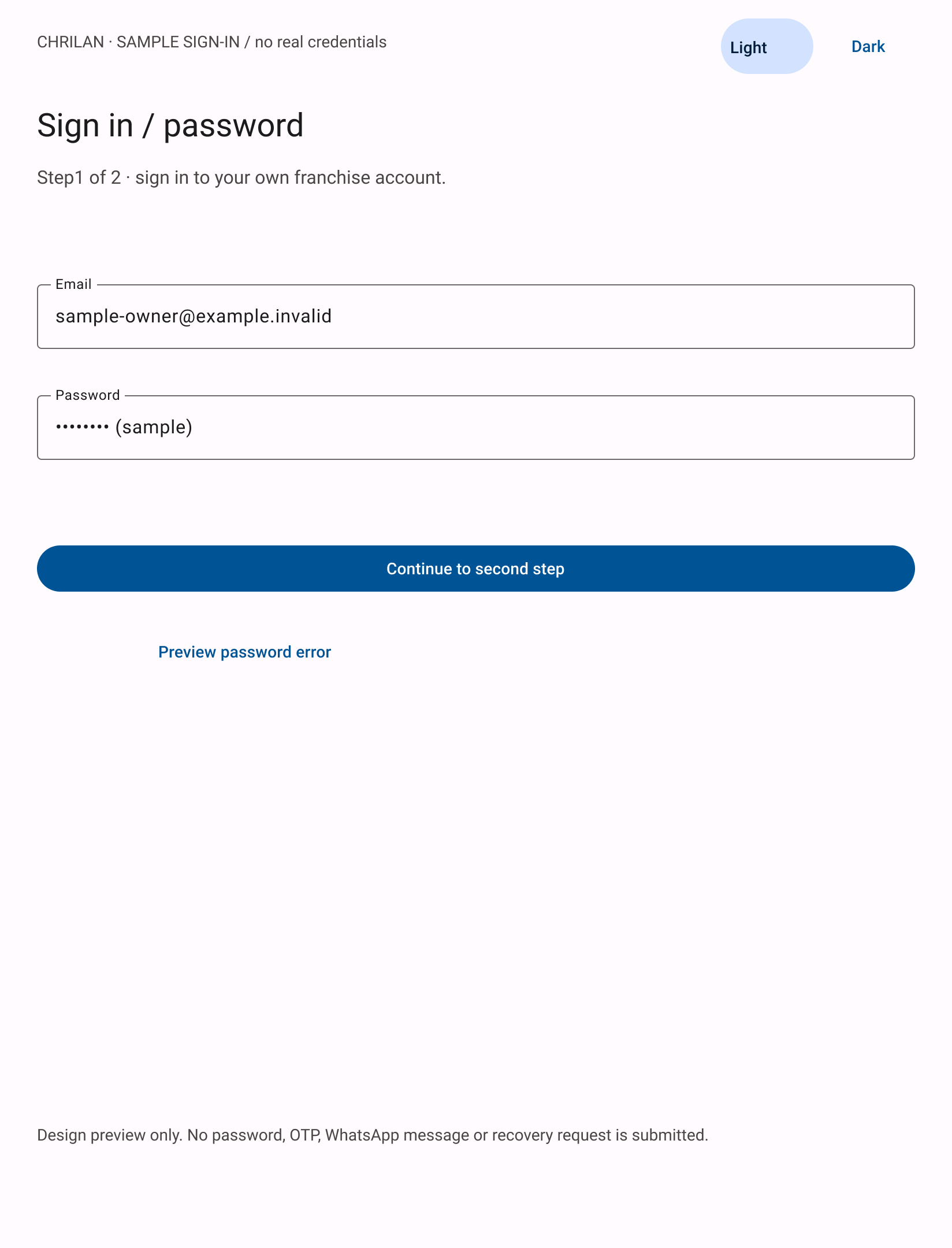
The sign-in screen. Example data only.
Your second step
Everyone who signs in to the dashboard completes a second step after the password. This is not a second approver: it does not approve payments or change anything about what you are allowed to do.
At setup you choose one of these and use that one from then on:
- WhatsApp, using the official WhatsApp route; or
- an authenticator app on your phone, which you set up by scanning a QR code.
You do not need both.
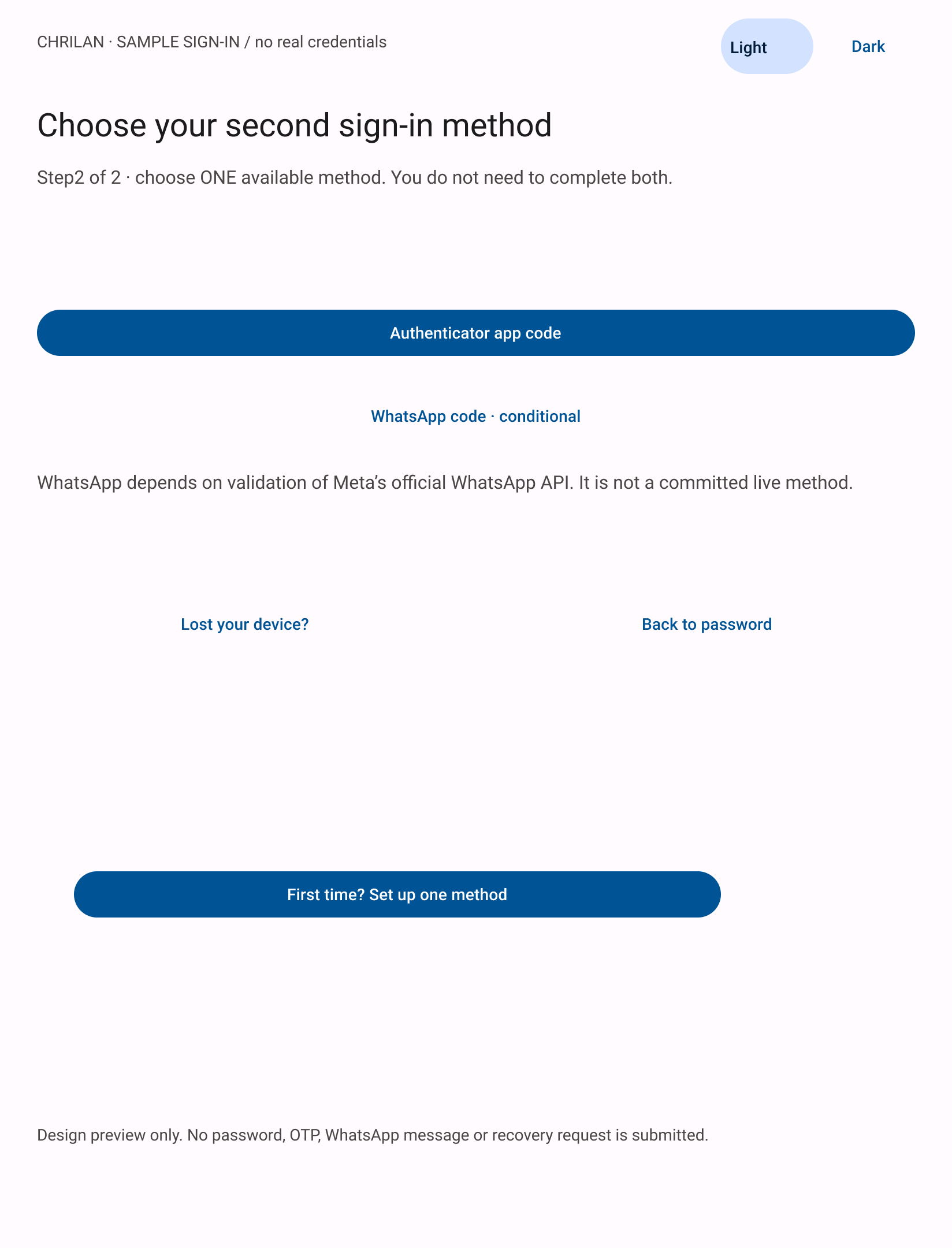
Choosing the second step. Example data only.
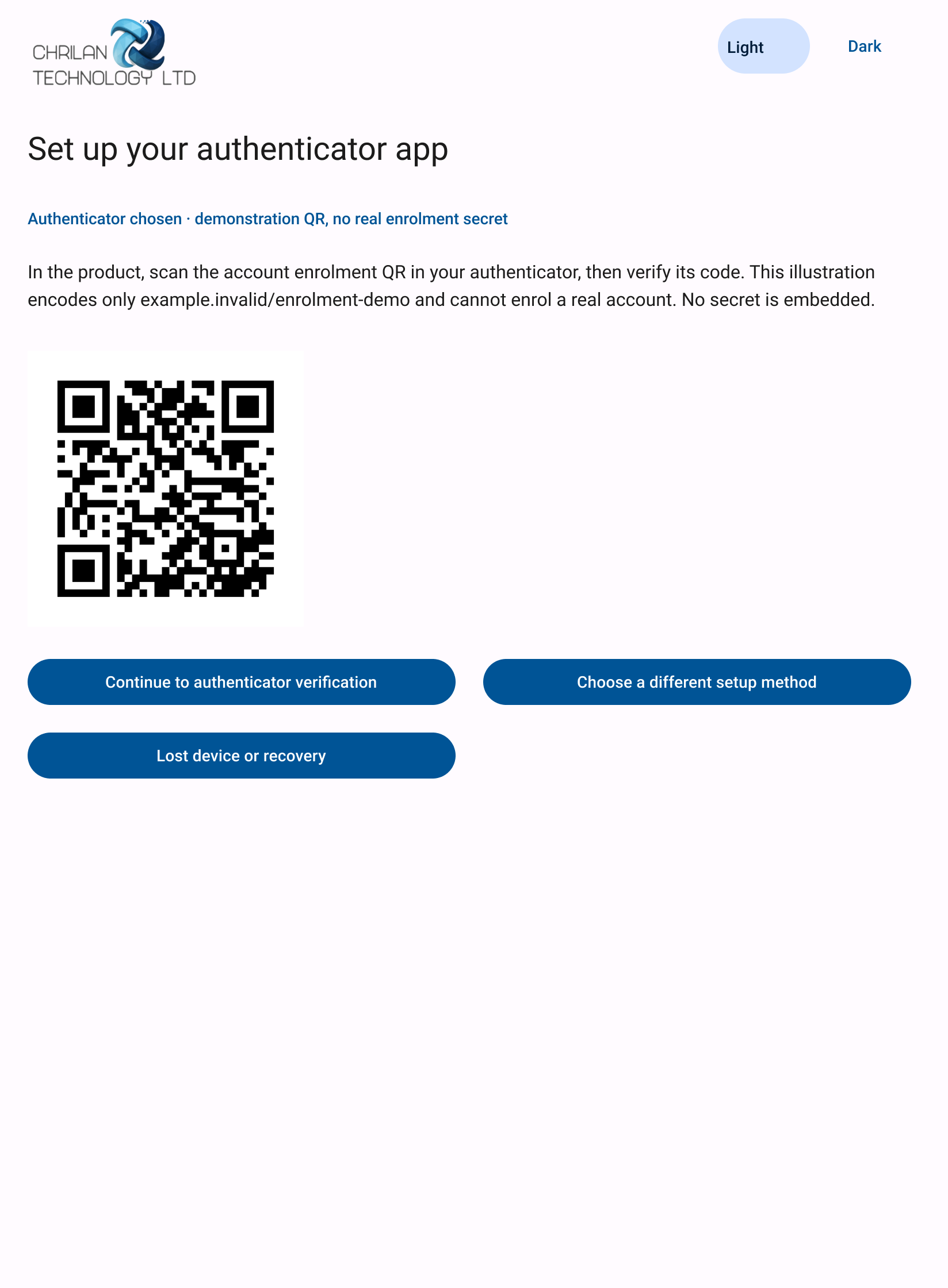
Authenticator enrolment: the QR code is how the authenticator app is set up. It is not a third sign-in method.
Not yet confirmed. Two things are still being confirmed. First, whether WhatsApp delivery will be available from the first day: the authenticator app needs nothing beyond your phone, while the WhatsApp route depends on official WhatsApp delivery being validated, and both methods are validated before release. Second, how you recover access if you lose the phone you use for your second step, and how you change from one method to the other. Until these are written up, ask your Franchise Owner or contact support (see Getting help) rather than creating a second account.
The three roles
| Role | What it covers |
|---|---|
| Franchise Owner | Full access within your own franchise: the in-scope franchise functions, for your own account only. That is not a bypass of account isolation, of the checks the server performs, or of the audit trail, and it does not bring back anything that is out of scope. |
| Franchise Admin | Billing, Smart Invoicing and customer onboarding (find or create a customer, link the TPIN, assign an allowed product, choose eligible licences). The Admin is not the Owner and does not have full access. |
| Franchise Support Agent | Support work only. The Support Agent has no billing, no paid licence actions, no Smart Invoicing management, no customer onboarding and cannot grant access. |
Not yet confirmed. The Support Agent's own permissions, including what it may read, are still being finalised. Until that list is confirmed, a Support Agent cannot read anything beyond what has been explicitly agreed.
Adding a staff member
An authorised person adds the staff member in the platform. The form asks for:
- First name
- Last name
- Phone number
- Email address
- Username
- Password
- The role, chosen from the three roles above
A TPIN, a physical address and an NRC number are customer details, not staff details, and are not asked for here.
Not yet confirmed. The approved design for this screen still shows only a staff name and a role. The six fields and the role are the agreed requirement, and the screen is being updated to match. Until it is, do not expect the approved design to show this form as described here.
Each person chooses their own second step for their own account: WhatsApp or an authenticator app.
Not yet confirmed. Still being confirmed: exactly which roles may add a staff member; how the password is set, delivered and later changed; and exactly when in the add-staff flow the person sets up their second step. They will be written into this page before publication.
First things worth checking
Once you are signed in:
- Check that your customers and their devices are there. Devices appear after the customer signs up at the POS; you do not add them here. If a device a customer has just signed up for is missing, see Getting help.
- Check your customer price per product. You set one price per product for your customers, and that is the price used in reminders and on the payment page. Chrilan's charge to your franchise is separate and is not affected by it.
- Check your staff list and their roles. Each person should have the role that matches what they do.
Next: The customer page.
Live V2 Sign-in Screen
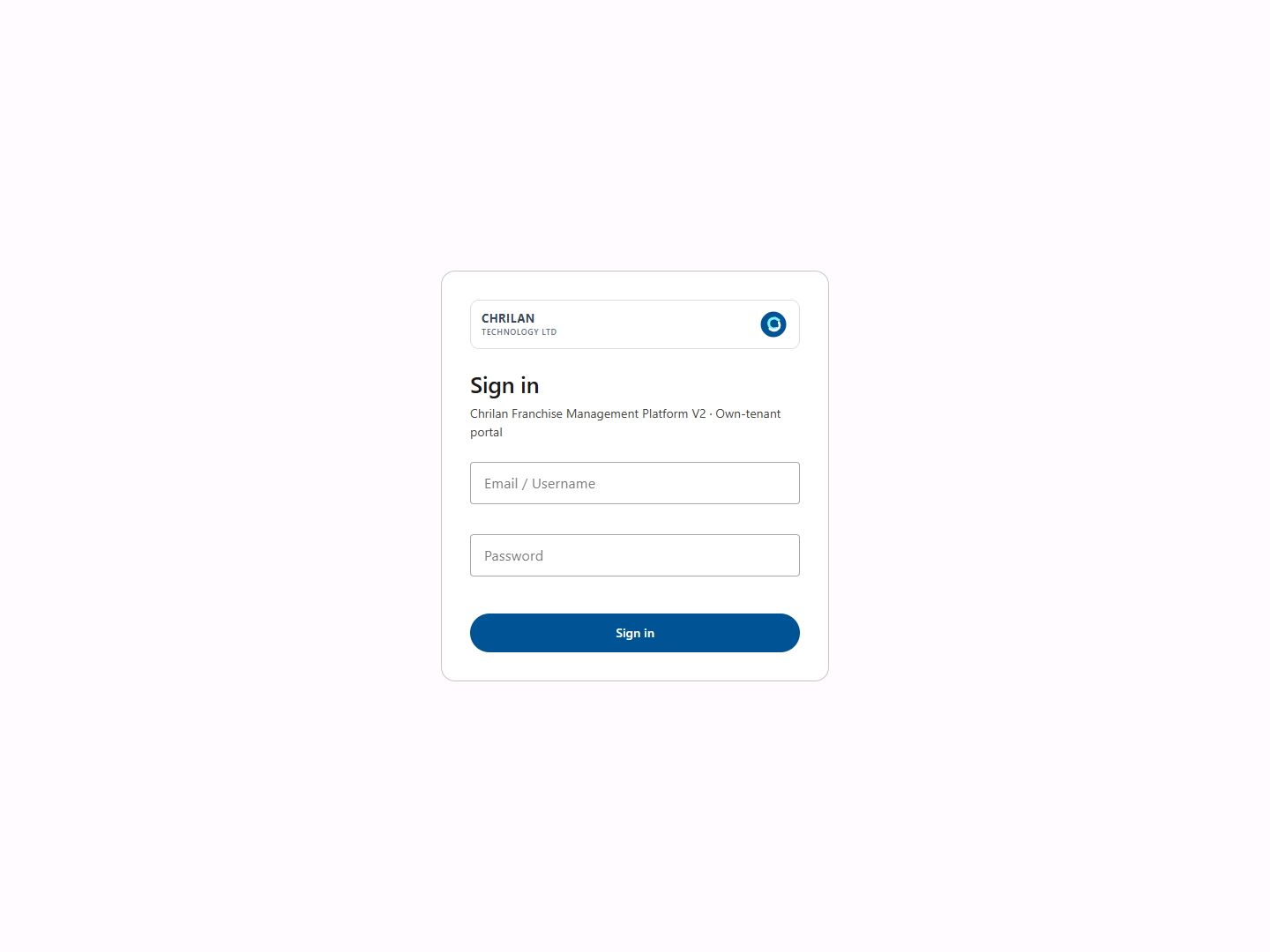
Live V2 sign-in page using synthetic test credentials.