Smart Invoicing
Tracking POS-originated Smart Invoicing applications and ZRA VSDC onboarding
Smart Invoicing
Smart Invoicing takes a customer from applied to activated with ZRA, and this platform carries the franchise side of that work.
Where an application starts
A Smart Invoicing signup starts in the POS, at the Kazang POS or the Lyt-ning POS. It does not start in this platform, and there is no button here that starts one.
Once the customer has applied, the application arrives on the Smart Invoicing page as waiting for your franchise to complete the flow.
Not yet confirmed. How an application travels from the POS to this page — its format, how long it takes to appear, and what happens if the same customer applies twice — is being confirmed. Today the requirement is that it arrives; the transport is not yet proven.
The list
The Smart Invoicing page lists the applications that have arrived for your franchise. You can search the list and filter it by status.
Not yet confirmed. Which of the existing application lists this page shows, and what a partly approved application looks like in the list, are still being confirmed.
One application
Open an application and you see:
- the customer and the store it applies to;
- the attachments, which you can download;
- the number of branches in the application;
- the onboarding status, who processed it and when;
- the actions you can take.
Onboarding statuses
There are three:
| Status | Meaning |
|---|---|
| Created | The application has arrived and has not been submitted yet. |
| In progress | It has been submitted and is being worked. |
| Closed | It is finished and activated. |
Not yet confirmed. The approved design of this page is still the older "Smart Invoice signups" screen, with different status words and a Lyt-SI source. Created, In progress and Closed are the agreed statuses and the page is being redesigned; until it is, the approved screen does not match this description.
The work you do
Most of the ZRA work happens in ZRA's own portal, not here. There is no ZRA interface in this platform.
- Select the branches you are onboarding.
- Each selected branch needs two values before it can be approved: the Device Serial Number and the Branch Code. There is no separate SDC ID field.
- Mark as submitted. You type the ZRA invoice reference numbers by hand — one or more of them — and you can tick the option to send the email at the same time.
- Watch for the result. After approval, the result for each branch is shown, and the page reloads the real state rather than assuming it worked.
Resend ZRA email is intended for when the email needs to go again.
Activate, then close
This is the part that matters most, and it is a strict order:
- The platform activates the customer's Smart Invoicing service in the Chrilan system.
- Only after that activation is confirmed does it close the onboarding ticket.
The confirmation must come from the system that activates the service, not from a message on this screen and not from a partial save.
If activation fails or is not confirmed, the ticket stays open, the error is shown, the values you entered are kept, and you can retry safely. A ticket is never shown as closed when the closure itself failed — and there is no way to force a ticket shut.
Not yet confirmed. What exactly counts as confirmed activation, and the contract behind it, is being confirmed with the system owners. The rule above is agreed; the proof is not yet demonstrated. The detail screen that carries the branch values, Mark as submitted and the per-branch result is also on hold in the approved design, so it is not shown in this guide yet.
Who can do this
The Franchise Owner and the Franchise Admin can complete the flow. A Franchise Support Agent cannot manage Smart Invoicing.
Not part of this platform
The installer route for Lyt-Si customers is not part of this project and is not described here: no installer ticket, no remote-desktop step, no antivirus changes and no API key setup.
Not yet confirmed
- Whether the customer is emailed, who receives the ZRA email, and whether a record of it is kept.
- Whether the Device Serial Number and Branch Code need a format check or a lookup beyond being filled in.
- Exactly how the status is saved at each step and how a repeat is made safe.
Next: Devices and licences.
Live V2 Smart Invoice Screen
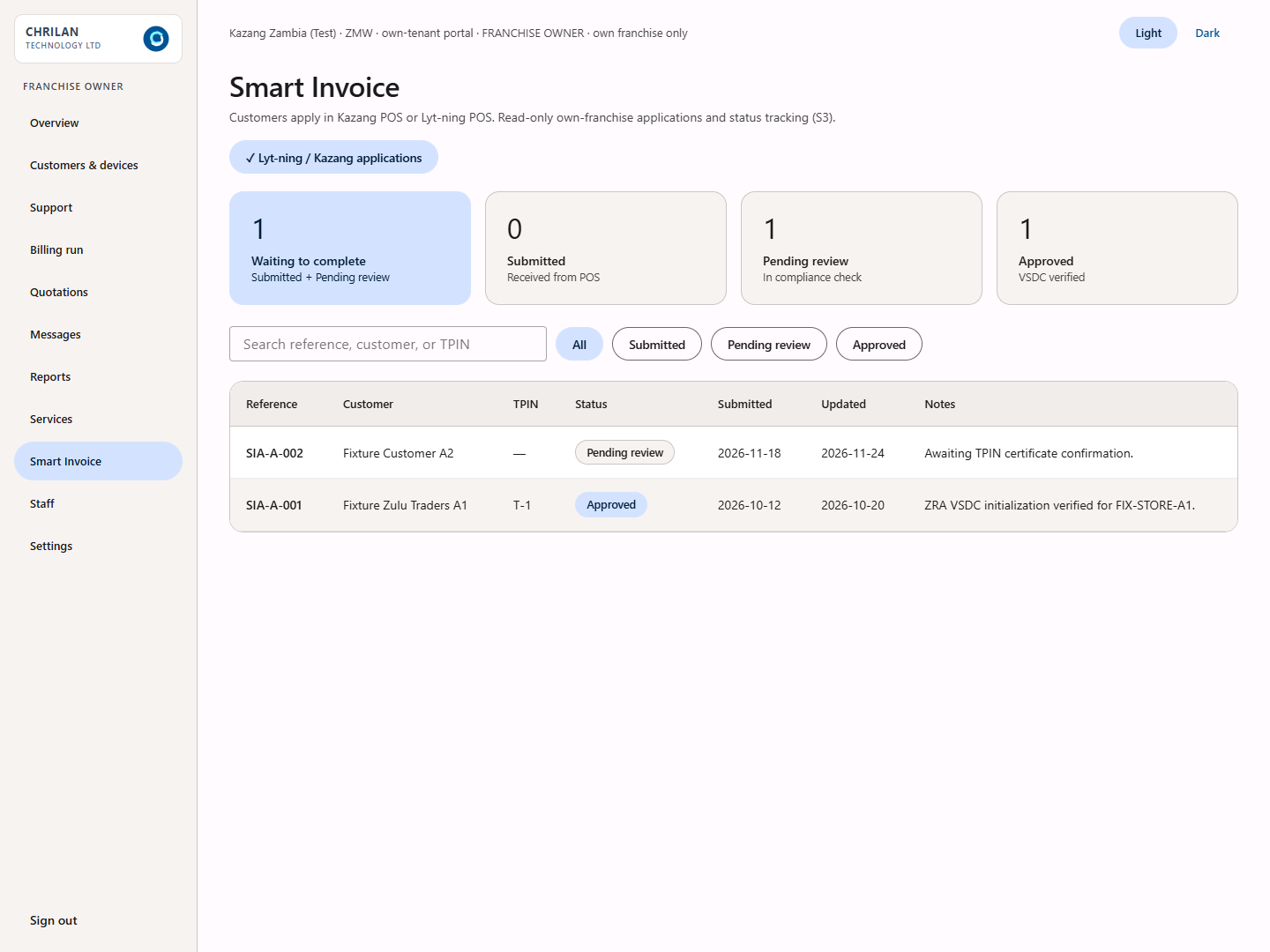
Tracking own-franchise Smart Invoice applications and status counts in V2. Example synthetic data only.